
 IT SB TextTyper · free
Types where pasting does not work.
Select text, press a shortcut, click into the target window – TextTyper types the text as real keyboard input. For passwords in RDP, Hyper-V and VMware consoles, iLO and anywhere the clipboard does not get through. Text you can only see, it reads straight off the screen.
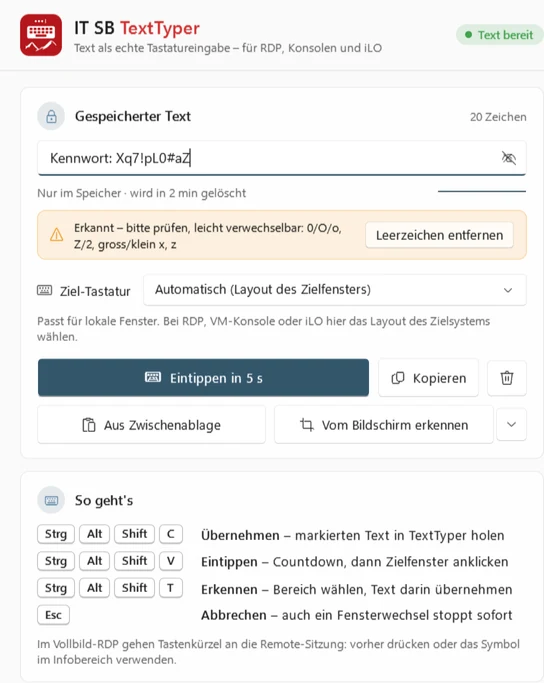
Three steps
- Capture – select text and press Ctrl+Alt+Shift+C. Or take it from the clipboard, or paste it straight into the field.
- Type – Ctrl+Alt+Shift+V, the countdown runs at the bottom right.
- Click the target window – when the countdown ends, TextTyper types into the active window. Esc or switching windows cancels.

Recognise text on the screen
A password only appears in a screenshot, a console or a remote support window? Press Ctrl+Alt+Shift+T, drag a rectangle – TextTyper reads the text and captures it.
- Text recognition offline on your PC (Windows: built in, Linux: Tesseract) – nothing goes to a cloud
- Easily confused characters such as 0/O or l/1 are highlighted for checking
- Then have it typed or copy it – without an entry in the clipboard history
- Also for screenshots that are already in the clipboard

Made for remote work
The right characters on any layout
If the server has a different keyboard layout than your PC, e.g. US instead of Swiss German, you choose the target keyboard. TextTyper presses exactly the keys that produce the character there – including Shift, AltGr and dead keys.
Text in memory only
The text is never saved, never logged and is deleted after the time you set. When capturing, your clipboard remains unchanged, including the Win+V history.
Always at hand
Runs in the notification area, starts at sign-in if you wish and reports new versions itself. For Windows (installation without administrator rights) and Linux.
Download for free
No licence, no account, no advertising – from IT Services Schneeberger for everyone who works in remote sessions every day.
Windows
Windows 10 and 11 – installation without administrator rights.
Digitally signed by IT Services Schneeberger. Windows still shows a warning?
Linux
Ubuntu, Linux Mint, Debian, Fedora and more – under X11 and Wayland.
Package for Debian, Ubuntu and Mint: sudo apt install ./itsb-texttyper_*_amd64.deb – AppImage for all distributions: make it executable and start it. Wayland?
Frequently asked questions
Is TextTyper really free?
Yes – for private and business use, without a licence key and without registration. If you need support for your IT, we are happy to help: Contact.
The shortcuts do not respond in full-screen RDP.
In full screen, shortcuts go to the remote session. Press the shortcut before you switch to the RDP window, or use the icon in the notification area.
Nothing arrives in the target window.
Windows running with administrator rights do not accept input from normal programs. In that case, start TextTyper as administrator as well.
Wrong special characters arrive.
The target system interprets the keys with its own layout. Set the target keyboard to the layout of the server or console, e.g. "US".
How reliable is the text recognition?
Very reliable for normal screen fonts. In some fonts, however, individual characters look almost identical – such as 0 and O, l and 1 or $ and S. TextTyper highlights these places; briefly check passwords before typing them.
Is the image saved?
No. The image and the recognised text stay in memory only; the clipboard is restored afterwards. Note: the Windows Snipping Tool may save snips itself in the "Pictures\Screenshots" folder – TextTyper detects this and offers to delete them. It is best to switch off the "Automatically save screenshots" setting in the Snipping Tool.
Does TextTyper also run on Linux – including Wayland?
Yes. Under X11 (e.g. Linux Mint) everything works without setup. Under Wayland (default on Ubuntu and Fedora), Linux does not allow programs to simulate key presses or use global shortcuts: TextTyper types there via a virtual keyboard – the package sets up the permission for this itself; with the AppImage, choosing "Set up keyboard access" (Tastatur-Zugriff einrichten) once in the settings is enough (administrator password). TextTyper registers the shortcuts under GNOME at the push of a button; on other desktops you create your own shortcuts with the commands itsb-texttyper --grab, --type and --ocr.
Where does the text recognition on Linux come from?
From Tesseract, offline on your PC. The package installs it automatically; with the AppImage, install it if needed, e.g. sudo apt install tesseract-ocr tesseract-ocr-deu (or tesseract-ocr-eng). Under Wayland, you select the area in the desktop's screenshot dialog – TextTyper deletes the image file again immediately.
Is the setup signed – and why does Windows sometimes still show a warning?
Setup and program are digitally signed by IT Services Schneeberger via Microsoft Artifact Signing (identity verified by Microsoft). You can see the publisher by right-clicking the file → Properties → Digital Signatures. With a brand-new version, Windows SmartScreen may briefly still show "Windows protected your PC" until the version is sufficiently widespread – the publisher shown there is then IT Services Schneeberger. Click "More info" and then "Run anyway". The program only installs updates that are additionally signed with the IT SB key.