
 IT SB System Health Checker
The health check for your IT.
Servers, network, Active Directory, Microsoft 365, virtualisation and security – in one program, collected read-only, assessed in plain language and with clear actions.
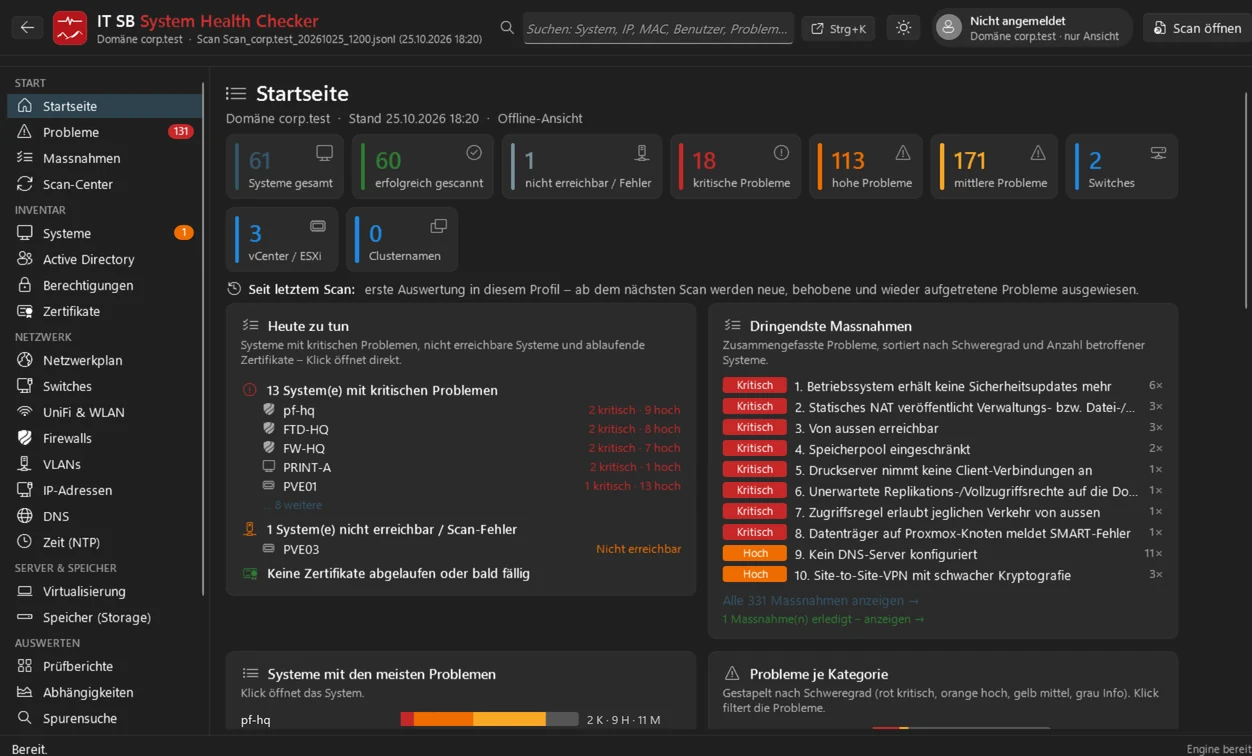
Collect, assess, understand
Collect – read-only
The scan centre reads your systems via their own interfaces: Windows Remote Management, SSH and vendor APIs. Nothing is installed on the servers, nothing is changed.
Assess – by urgency
Hundreds of check rules assess every system. Identical problems are bundled into actions, sorted by severity and given concrete steps to fix them.
Understand – with context
Dependencies, network map, switch ports, permissions and trace search show how everything is connected – and what a failure or a change affects. More on this
Dependencies at a glance
Which systems does a server need – and who needs it? The System Health Checker automatically puts together the relationships from all scans and shows them as a graph. This way you understand an unfamiliar environment in minutes and know before every change what will be affected.
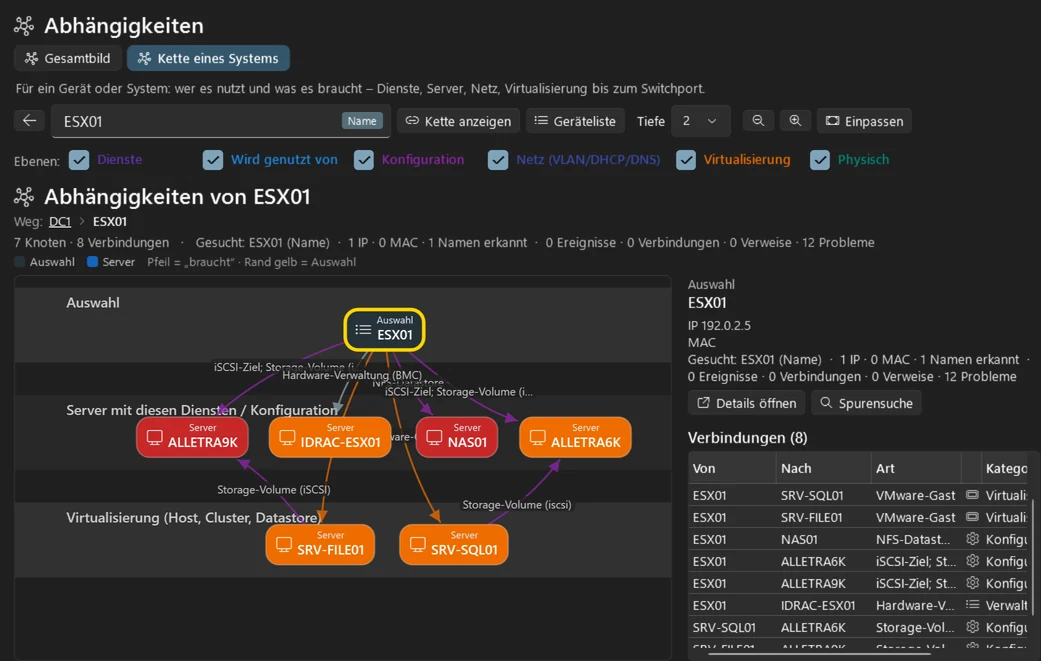
The chain of a system
A name, an IP or MAC address is enough: you see what the system depends on and who uses it – across services, configuration, network and virtualisation down to the switch port.
- "What happens if this host fails?" – all affected VMs, storage and services
- Layers can be switched on and off individually, depth selectable
- Every node opens the details of the system
The big picture of the environment
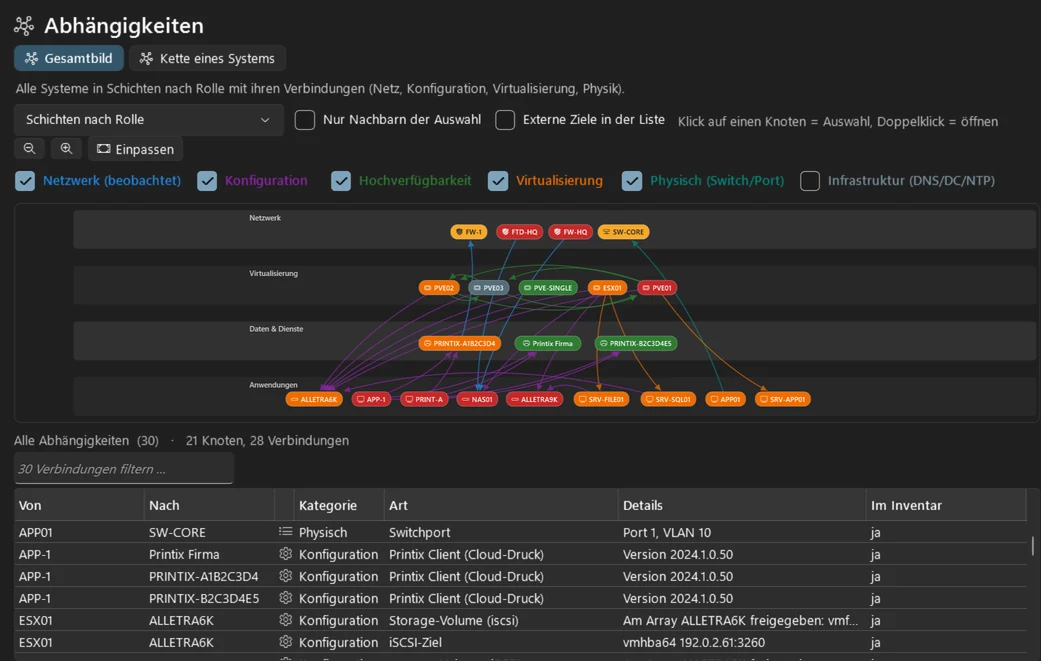
All systems in layers by their role – network, virtualisation, data and services, applications – with the connections between them. Ideal when taking over an environment, for documentation and before migrations.
- Detected from observed connections, configuration, clusters, virtualisation and switch ports
- Colour shows the state of each system
- Plus network map, VLANs, DNS and time flow as well as the trace search
A tour of the program
Choose a feature. The markers in the image show what matters – the screenshots come from a demo environment with fictitious data. The program itself is in German.
Actions instead of a data graveyard
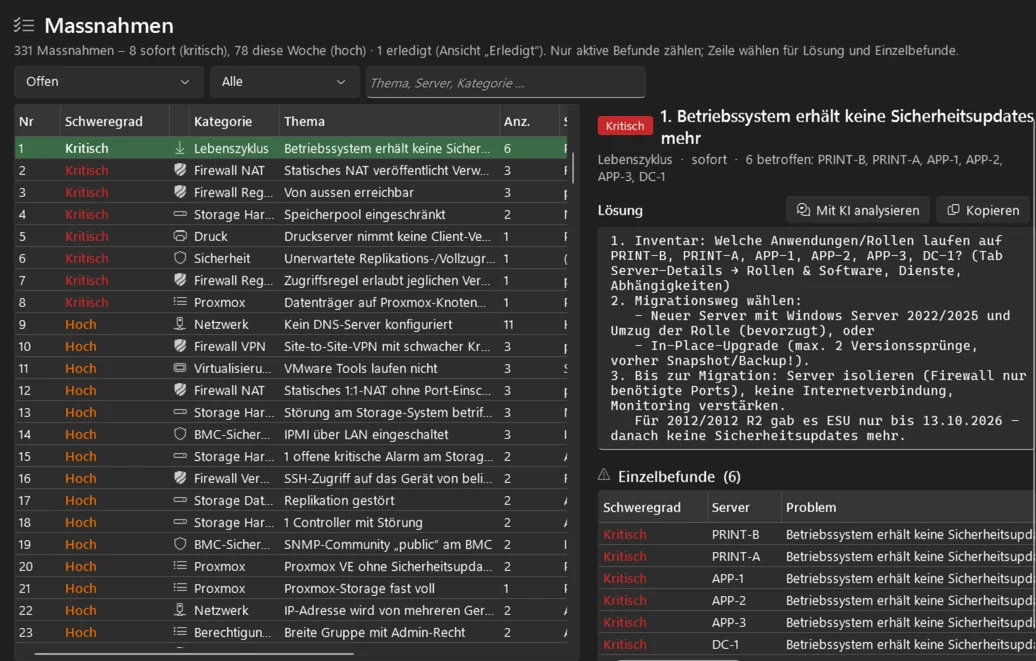
All findings are turned into a prioritised plan: what to do immediately, what this week and what later – with steps to fix them, all affected systems and the history since the last scan. Export to Excel, CSV and as an HTML report.
- Sorted by urgency – critical, high, medium, info
- Concrete steps for each action
- "Analyse with AI" (Mit KI analysieren) explains cause and solution for your environment
- All affected systems with their individual finding
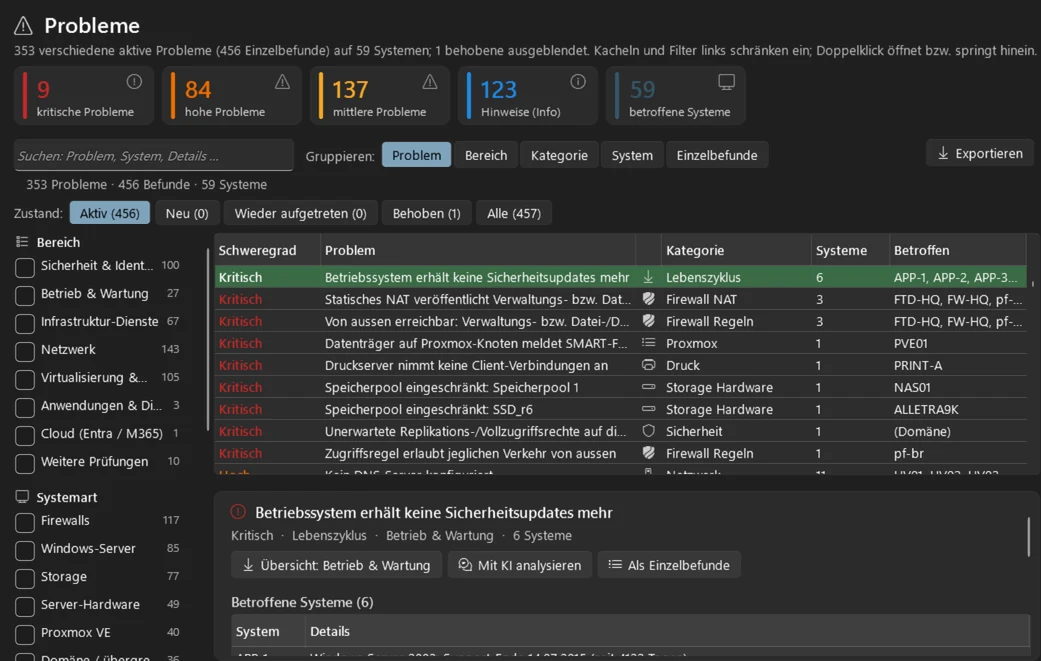
All problems of all systems
Every finding with category, affected systems and recommendation – from Windows servers, certificates and backups through network, firewalls and virtualisation to Active Directory, Entra ID and Microsoft 365.
- Tiles by severity – one click filters
- New, recurring or resolved since the last scan
- Narrow down by area and system type
- Affected systems directly below
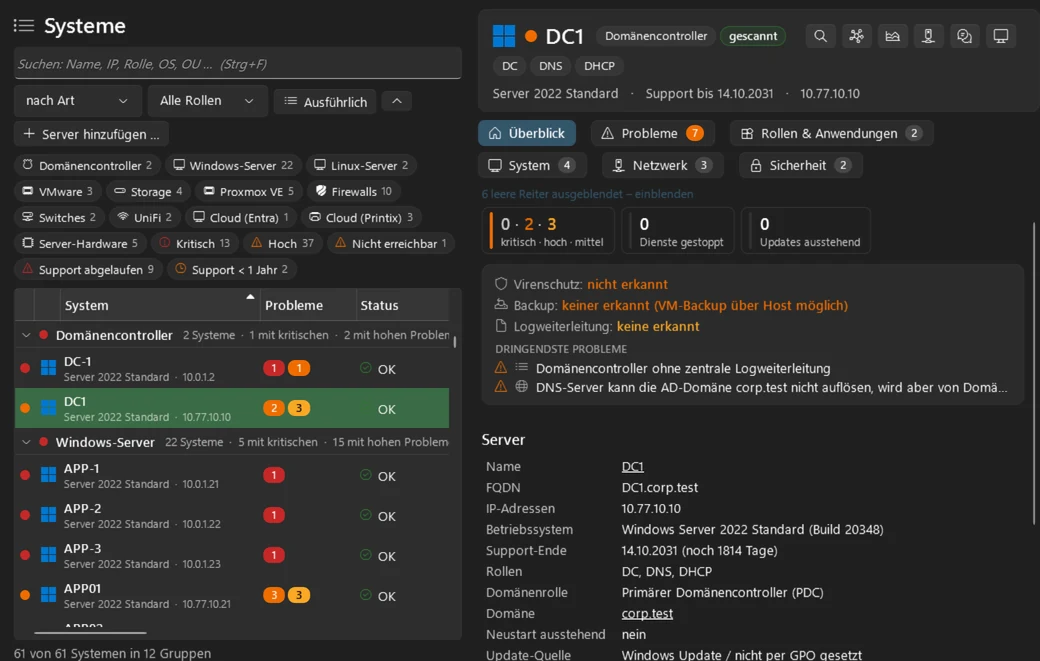
Every system in detail
All systems with role, operating system, end of support and state. One click shows the roles, applications, network, security and problems of the system.
- Quick filters by type, role and state
- Tabs for roles, network, security and problems
- Problems, stopped services and pending updates
- Antivirus, backup and log forwarding per server
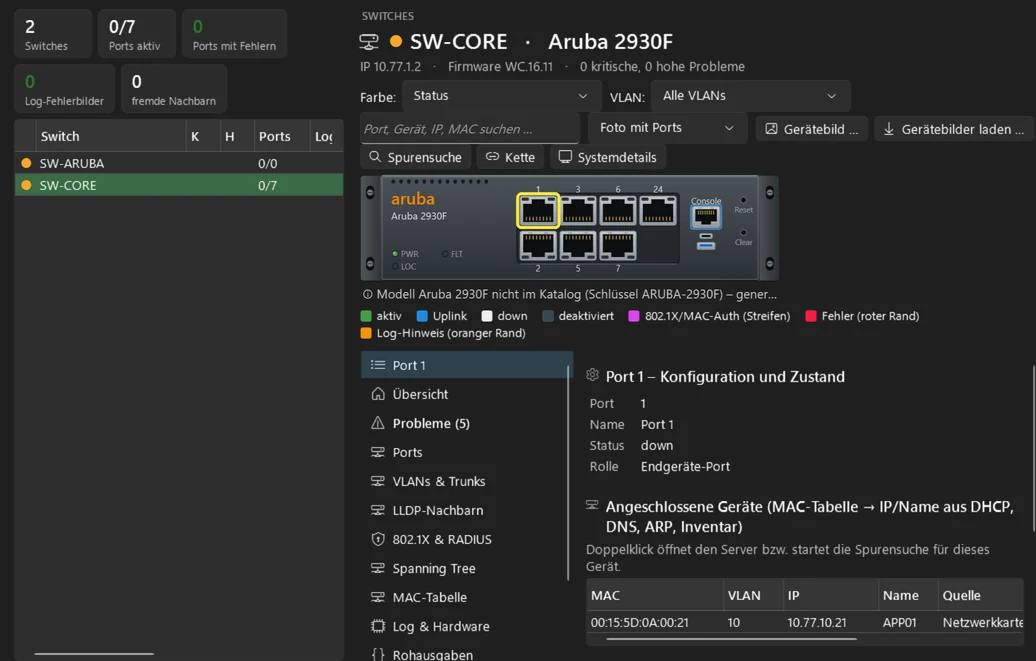
Switches with front view
Every port with state, VLANs, connected devices, 802.1X and log messages – right on the front view of the device. HPE Aruba/ProCurve, AOS-CX, HPE Comware and UniFi.
- Front view: colour shows state, uplink, 802.1X and errors
- Ports, VLANs and trunks, LLDP, spanning tree, MAC table
- Connected devices with names from DHCP, DNS and inventory
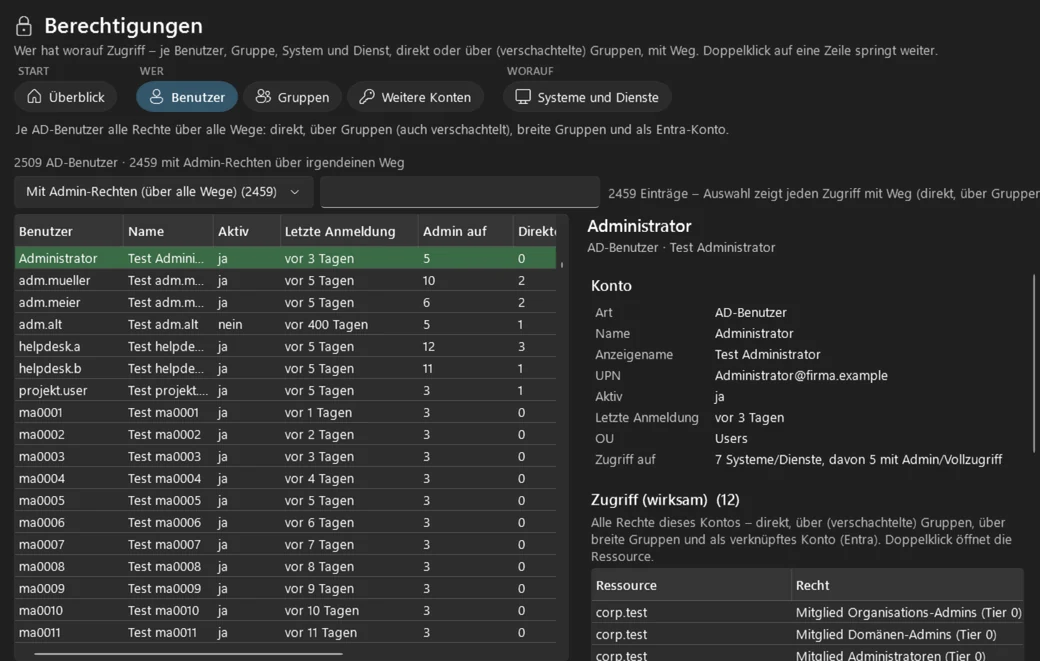
Who has access to what?
Permissions per user, group, system and service – directly or via nested groups, with the exact path. Active Directory, shares and NTFS, SQL Server, Entra ID, Teams, SharePoint and mailboxes.
- Choose the view: users, groups, accounts or systems
- Admin rights counted across all paths
- Effective access with path – including via nested groups
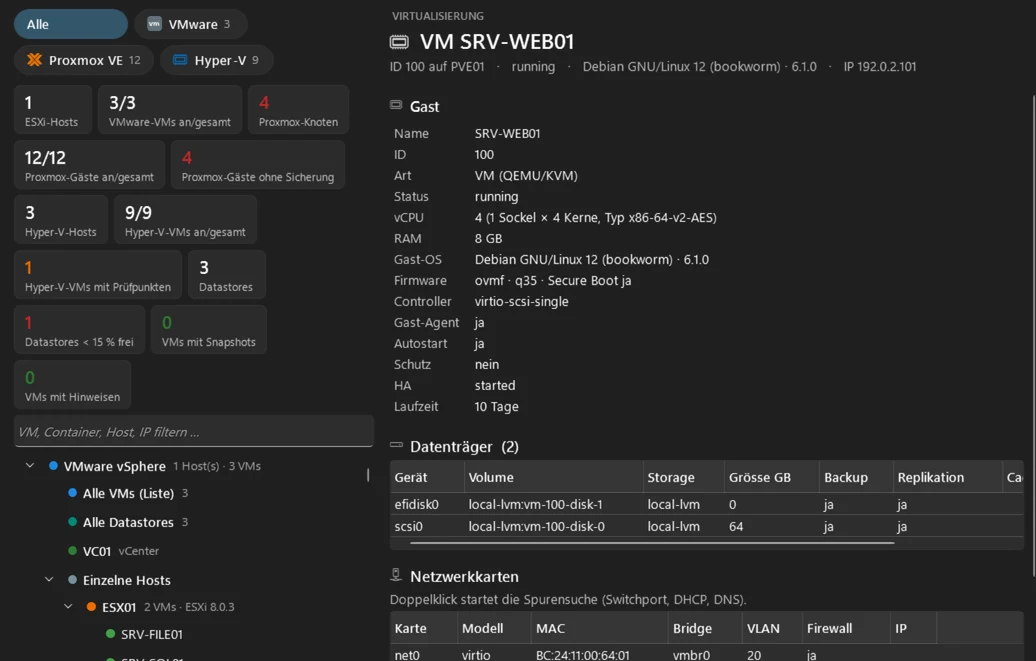
Virtualisation and storage
VMware vCenter/ESXi, Hyper-V clusters and Proxmox VE in one view: hosts, VMs, datastores, snapshots and backups – plus Synology, HPE Alletra and Veeam.
- All platforms in one view
- Anomalies such as guests without backup or full datastores
- Volumes with backup and replication status
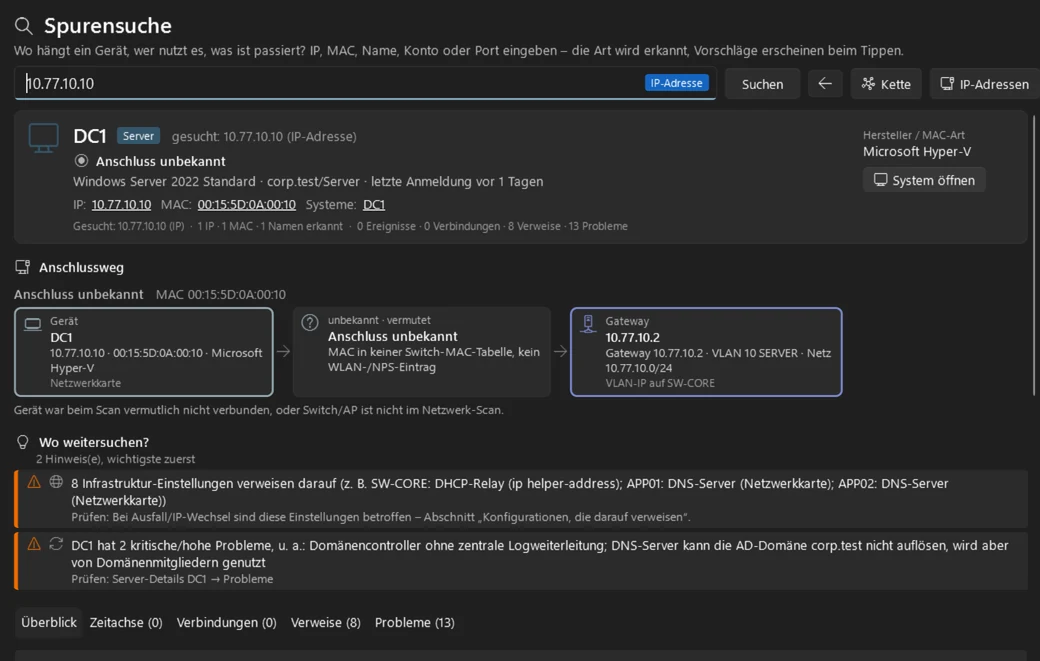
Trace search
Enter an IP address, MAC, device name, account or port – and see where a device is connected, who uses it and what has happened.
- The type of input is recognised
- Connection path down to the switch port or access point
- Hints on where to look next
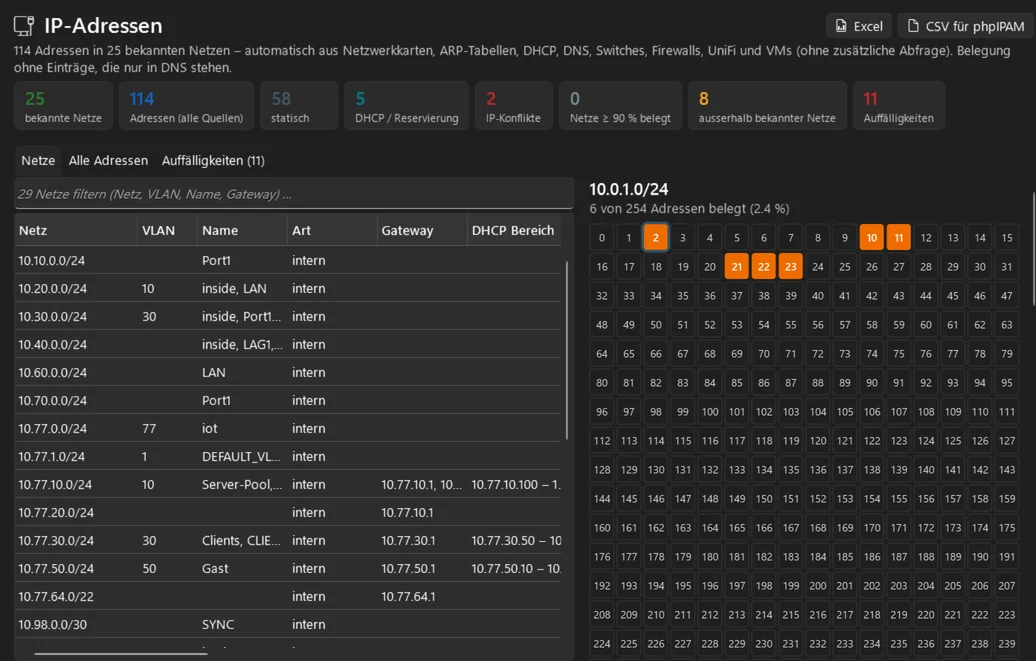
IP addresses automatically
All networks and addresses from the existing scan data – network adapters, ARP, DHCP, DNS, switches, firewalls, UniFi and VMs. Without an additional query.
- Usage, conflicts and full networks at a glance
- Address map per network
- Export to Excel and for phpIPAM
Ask instead of searching: the AI assistant
Ask in your own words. The assistant reads your scan data in a targeted way, explains causes and writes steps and scripts to fix them. On actions, problems and systems, one click on "Analyse with AI" is enough.
- Which servers run without a backup?
- What is affected if SW-CORE fails?
- Who has admin rights on the file server?
- Write me a script to fix this finding.
- With your own API keyAnthropic Claude or OpenAI ChatGPT, also Azure OpenAI. The key is stored encrypted in the program's vault, and billing is directly with your provider. Without a key, the assistant stays off.
- Reads only, executes nothingThe assistant uses read-only queries on your scan data exclusively. Scripts in answers can be copied or saved – nothing is executed.
- You keep control over your dataPasswords, tokens and keys are masked before sending. On request, the program shows you exactly what goes to the provider before each request – and what it costs.
Live data and changes with the IT SB Health Agent
The Health Agent is a small service for Windows and Linux on the target devices. With it, the assistant queries live data – such as the sign-ins of an AD user or a device in Entra ID – and changes can be carried out directly on the device.
- A job is createdTarget device, complete script and arguments – proposed by the assistant or created by you.
- You approve exactly this jobThe approval is a signature: valid once, for one hour at most. There is no bulk approval.
- The agent executes and logsCollected via mutually authenticated TLS, result back into the program, journal on both sides.
Nothing runs without your approval. Credentials from the vault are only added after approval – encrypted for the target device; the assistant never sees them.
Reads what is really found in SME networks
Built by a security expert
A tool that sees your entire IT must itself be secure. That is why the rule is: as little access as possible, as much control as necessary.
Read-only
All scans only read. No agents on the servers, no changes to your systems.
Data stays with you
Scans are stored locally and encrypted in the profile. Credentials are kept in a vault with Windows Hello. No cloud needed.
Execution only with approval
The optional IT SB Health Agent only executes jobs on target devices after your explicit approval – each one individually.
Try it free for 30 days
Full functionality, once per device. After installation choose "Test for 30 days" (30 Tage testen) – this needs an internet connection once. Then enter the licence key; your data is kept.
Digitally signed by IT Services Schneeberger. Windows still shows a warning?
Licences for your company
Licensing is per device on which the System Health Checker runs – as an annual or a perpetual licence. Buy online with PayPal or card – the key arrives by email immediately. For several devices or payment by invoice, you receive a personal quote.
Licence
Annual or perpetual licence, for one or several devices – or as a company licence for an unlimited number of devices. Activation once online, then without a connection.
With guidance
Initial setup, evaluation of the first scan and implementation of the actions – by IT SB.
Frequently asked questions
Does the System Health Checker change anything on my systems?
No. All scans only read. Nothing is installed on the servers. Changes are only possible via the optional Health Agent – and only after you approve each individual job.
Is my data transferred to IT SB or to a cloud?
No. Scans and evaluations stay on your device, encrypted in the profile. For the licence, the program transmits the licence key, an anonymous device ID, the device name and the version once.
What do I need for the scan?
A Windows PC (Windows 10/11, 64-bit) in the network and accounts with read rights on the systems to be checked. The setup wizard guides you through the credentials step by step.
What happens after the 30 days?
Without a licence, new scans are blocked; saved scans can still be opened. After entering a licence key, you continue seamlessly.
Can I move the licence to a new PC?
Yes. In the program choose "Release device" (Gerät freigeben) and activate it on the new PC.
Is the setup signed – and why does Windows sometimes still show a warning?
Setup and program are digitally signed by IT Services Schneeberger via Microsoft Artifact Signing (identity verified by Microsoft). You can see the publisher by right-clicking the file → Properties → Digital Signatures. With a brand-new version, Windows SmartScreen may briefly still show "Windows protected your PC" until the version is sufficiently widespread – the publisher shown there is then IT Services Schneeberger. Click "More info" and then "Run anyway". The program only installs updates that are additionally signed with the IT SB key.