
 IT SB Cleaner
Free up space – on servers and clients.
Disk Cleanup, component store and temp files – on Windows servers and clients from Active Directory and from Intune, in parallel, with status and before/after comparison.
Select, measure, clean up
Select systems
Cleaner reads servers and clients from Active Directory – clients also from Intune if you wish –, checks whether they are reachable and shows them in two tabs. Tick them, done.
Measure first
"Measure only" shows the free space per drive, the available clean-up categories and pending restarts – without deleting anything. Works without a licence too.
Then clean up
Several servers at the same time, each category individually with live display. At the end you see per server and drive how much space has been freed.
A tour of Cleaner
Choose a feature. The markers in the image show what matters – demo environment with fictitious data. The program itself is in German.
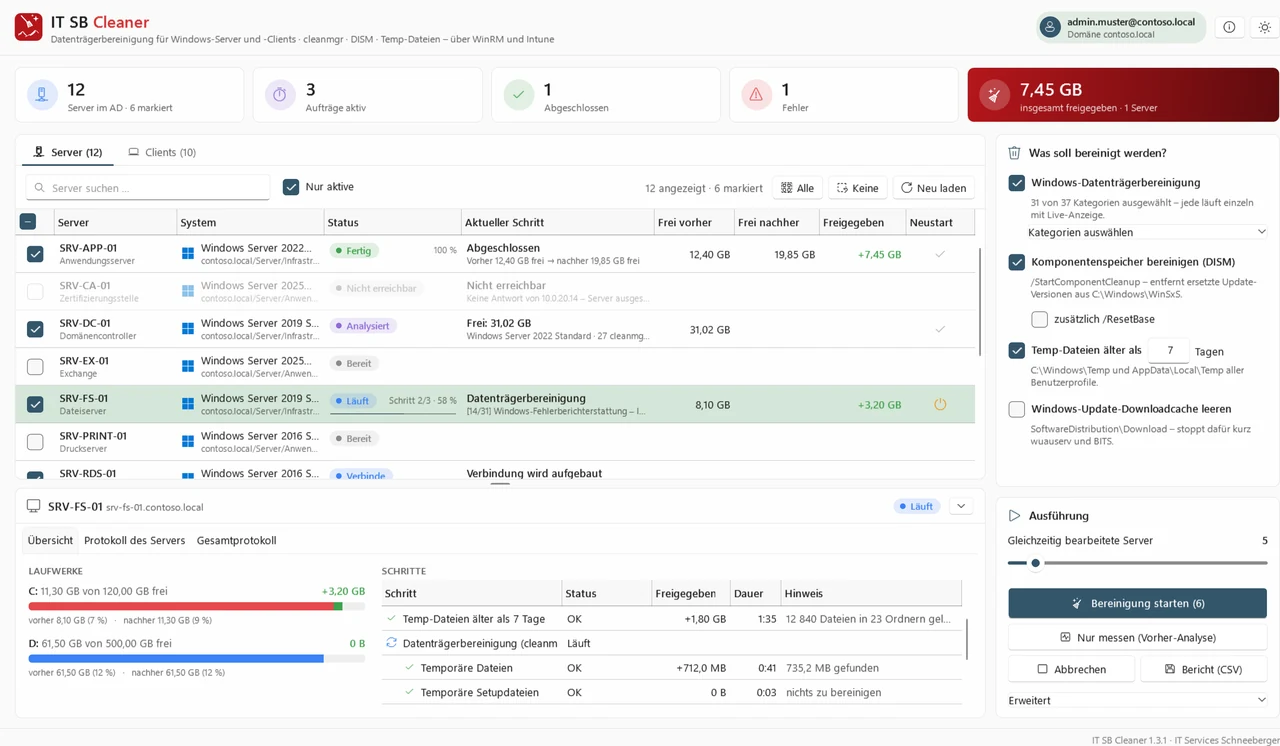
Live – server by server
For each server you see the current step, the progress and the space gained so far. Below are the drives before and after, every step with its result and the log straight from the server.
- Status and current step per server
- Total space freed
- Choose the scope: Disk Cleanup, DISM, temp files, update cache
- Drives before and after
- Every step with result and duration
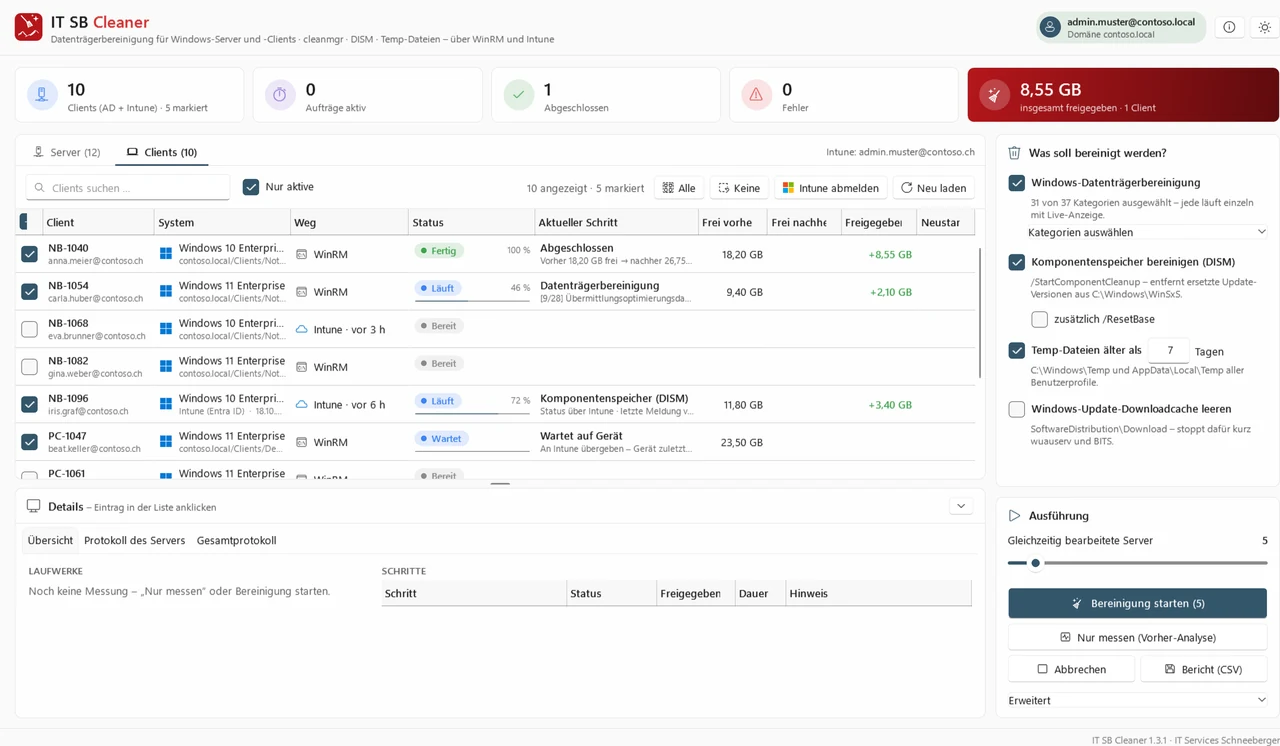
Clients – also via Intune
Cleaner cleans up Windows clients from Active Directory like servers via WinRM – with live progress. Notebooks on the road and Intune-only devices are reached via Intune: as an on-demand remediation (Windows Enterprise E3/E5) or as a platform script. Intune continuously reports the status back.
- Separate tab for clients – with separate licence counting
- Connect to Intune: sign in with the Entra admin account in the browser
- Path per device: WinRM or Intune, with last contact
- Status via Intune too: handed over, waiting for device, running, done
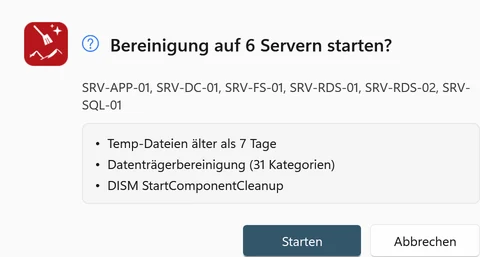
Everything Windows can clean up itself
Cleaner uses the clean-up functions of Windows – the same as Disk Cleanup, but remotely, on many servers and with full control. Before the start you see exactly what happens where.
- All target servers at a glance
- Exactly the selected scope – each category runs individually
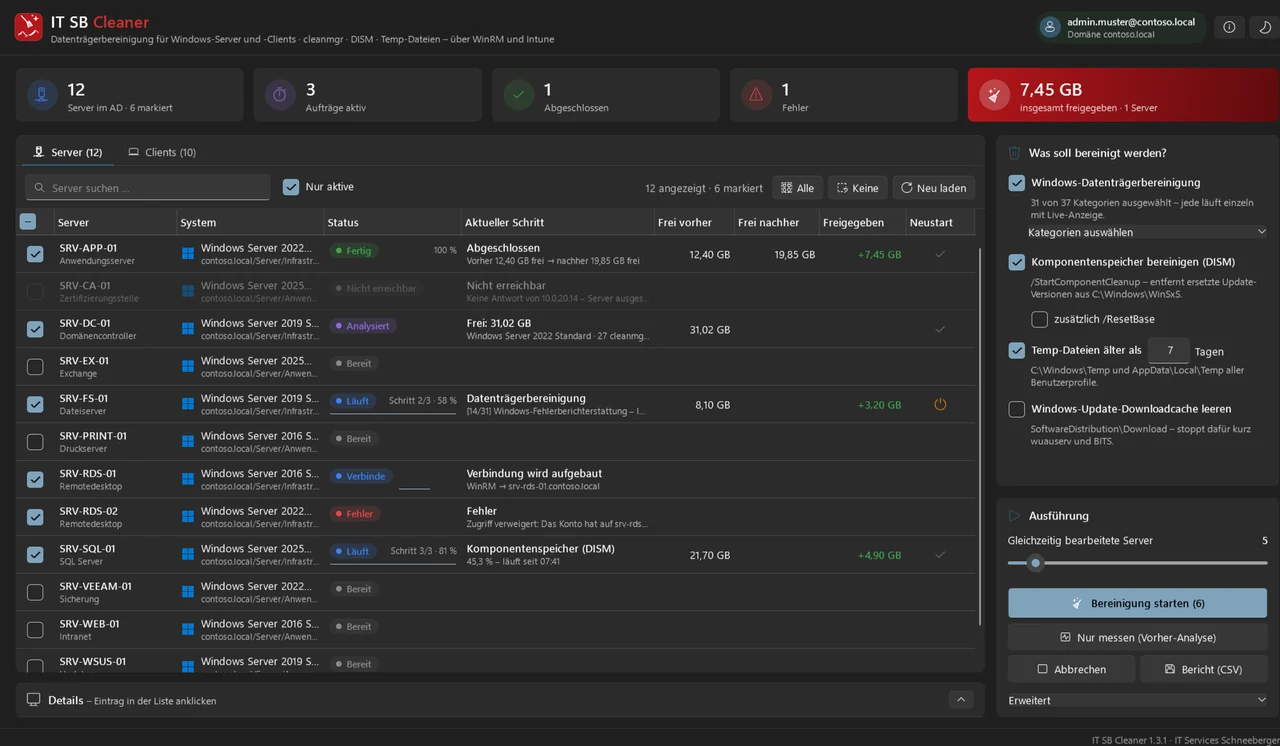
Many servers in parallel
Several servers at the same time, number adjustable. If a category hangs, it is ended and the clean-up continues. At the end a report as CSV for Excel – light or dark, as you prefer.
- State per server: ready, running, done, error
- Errors with a reason, e.g. missing rights
- How many servers are processed at the same time
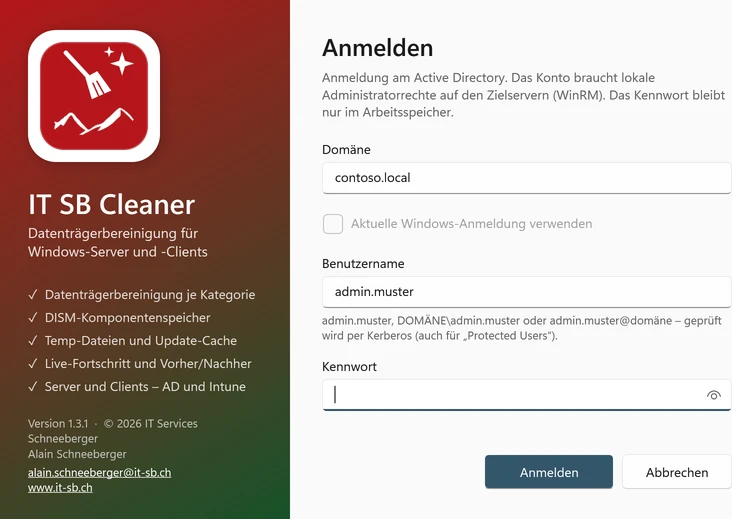
Secure sign-in
You sign in with an AD account with administrator rights on the servers. Authentication uses Kerberos – without falling back to NTLM, also for accounts in "Protected Users". The password stays in memory only.
- On domain PCs also with the current Windows sign-in
- Authentication via Kerberos – also for "Protected Users"
Nothing is left behind
A tool with administrator rights on all servers must be particularly careful.
No agent
The clean-up runs via Windows Remote Management as a temporary task. Afterwards it is removed – only a log remains for traceability.
Runs to completion
If the connection drops or the program is closed, the clean-up safely runs to completion on the server. At the next start, Cleaner takes over the monitoring again.
Data stays with you
No cloud, no account with us. For the licence, the program only transmits the key, an anonymous device ID and the names of the licensed servers.
Try it free for 30 days – with one server and one client
Full functionality, once per device. "Measure only" also works without a licence. After installation choose "Test for 30 days" (30 Tage testen) – this needs an internet connection once. One licence covers Windows and Linux.
Windows
Servers and clients – via Active Directory (WinRM) and Intune. Windows 10/11, installation without administrator rights.
Digitally signed by IT Services Schneeberger. Windows still shows a warning?
Linux
Clean up Windows clients via Microsoft Intune – from Ubuntu, Linux Mint, Debian, Fedora and others. Servers are cleaned up by the Windows version.
Package for Debian, Ubuntu and Mint: sudo apt install ./itsb-cleaner_*_amd64.deb – AppImage for all distributions: make it executable and start it.
Buy once, use forever
Licensing is per server and per client that is cleaned up – counted separately, perpetual and on any number of workstations. Each system is permanently bound to the licence on its first clean-up and cannot be swapped afterwards. Buy online with PayPal or card – the key arrives by email immediately.
Trial version
30 days for one server and one client, full functionality. Measuring works on all systems.
Licence per server and client
Perpetual for the number of servers you need. You buy clients as an add-on – also later, without a new key.
With guidance
We clean up your servers for you and look into why space is running out – by IT SB.
Frequently asked questions
What exactly is deleted?
Only what Windows itself knows to be dispensable: the categories of Disk Cleanup, superseded update versions in the component store (DISM), temp files from the selected age and, if you wish, the Windows Update download cache. You choose each category yourself – and can measure beforehand.
What does "licence per server and client" mean?
The licence applies to a fixed number of servers and – counted separately – clients. A system is bound to the licence on its first clean-up and stays bound – it can then be cleaned up as often as you like, but not swapped for another one. With the company licence you clean up an unlimited number of servers or clients. You may use Cleaner itself on any number of workstations.
Does the licence expire?
No. Cleaner licences are perpetual. You buy clients as an add-on to your existing licence when needed – without a new key; in Cleaner, "Check online" (Online prüfen) is enough. For further servers, we extend your existing licence.
What do I need?
A Windows PC (Windows 10/11, 64-bit) in the network, an AD account with administrator rights on the systems and Windows Remote Management (WinRM) – active by default on Windows servers from 2012, to be switched on for clients via Group Policy. For clients via Intune: an Entra account with the Intune Administrator role. It also works without Active Directory – then Cleaner only cleans up clients via Intune.
How do clients via Intune work?
On the first "Connect to Intune" (Intune verbinden), a wizard sets up the connection in your own tenant: an administrator signs in – in the browser or with a device code, e.g. on a mobile phone –, and Cleaner creates the app registration itself. Afterwards it shows all Windows devices from Intune. If a client is reachable via WinRM, it runs directly with live progress. Otherwise Intune takes over: as an on-demand remediation if your licence allows it (Windows Enterprise E3/E5), otherwise as a platform script at the device's next sync (up to about 8 hours). The status – handed over, waiting for device, running, done with freed space – comes back via Intune.
Is Cleaner also available for Linux?
Yes – for clients via Intune. The Linux version (package for Debian, Ubuntu and Mint or AppImage) cleans up Windows clients via Microsoft Intune, just like under Windows: sign-in with the Intune account in the browser, start as a remediation or platform script, status per device. The same licence applies, and bound clients count for both versions together. Only the Windows version cleans up servers via Windows Remote Management.
Does the server have to be restarted?
No. Cleaner does show you, however, when a restart is pending – after a restart, often even more space can be reclaimed.
Is the setup signed – and why does Windows sometimes still show a warning?
Setup and program are digitally signed by IT Services Schneeberger via Microsoft Artifact Signing (identity verified by Microsoft). You can see the publisher by right-clicking the file → Properties → Digital Signatures. With a brand-new version, Windows SmartScreen may briefly still show "Windows protected your PC" until the version is sufficiently widespread – the publisher shown there is then IT Services Schneeberger. Click "More info" and then "Run anyway". The program only installs updates that are additionally signed with the IT SB key.