
 IT SB Intune Manager
Win32 apps for Intune – packaged, deployed, under control.
Drag in the setup, check, publish: Intune Manager analyses the setup, writes the installation script, packages the app, uploads it to your tenant and shows the status per device. Plus remediations, several tenants and an AI assistant.
Drag in, check, publish
Drag in the setup
Drag an MSI or EXE into the window: Intune Manager reads the name, publisher, version and logo, recognises the setup type, suggests the switches for a silent installation and creates the detection rule.
Check the package
The installation script is created automatically – with logging, return codes, dependencies and a notification window for users. Requests such as "no auto-updates" are built in by the AI assistant if you wish.
Publish to Intune
Package, encrypt, upload and assign in one step – as a new app, as an update of the existing one or as a replacement via supersedence. Afterwards you see the status per device.
A tour of Intune Manager
Choose a feature. The markers in the image show what matters – demo tenant with fictitious data. The program itself is in German.
Apps in Intune – status per device
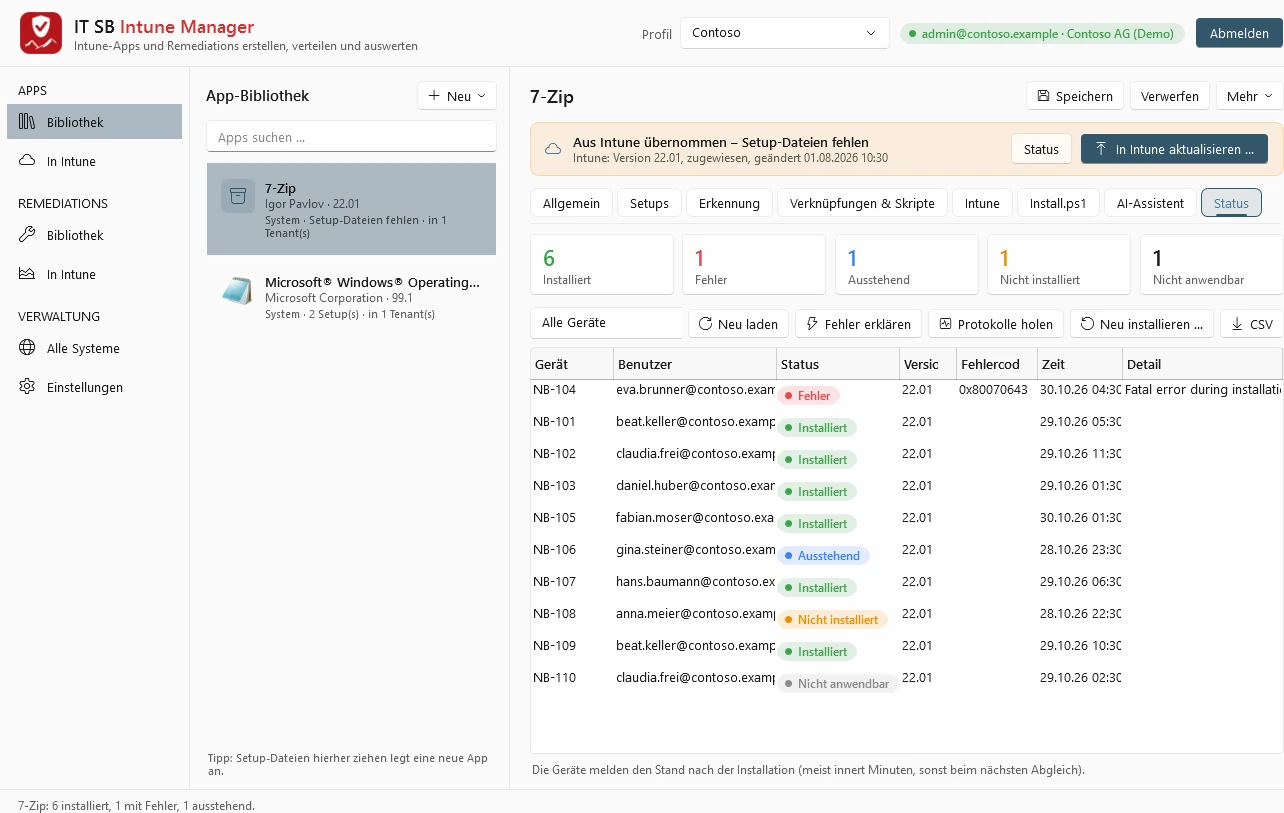
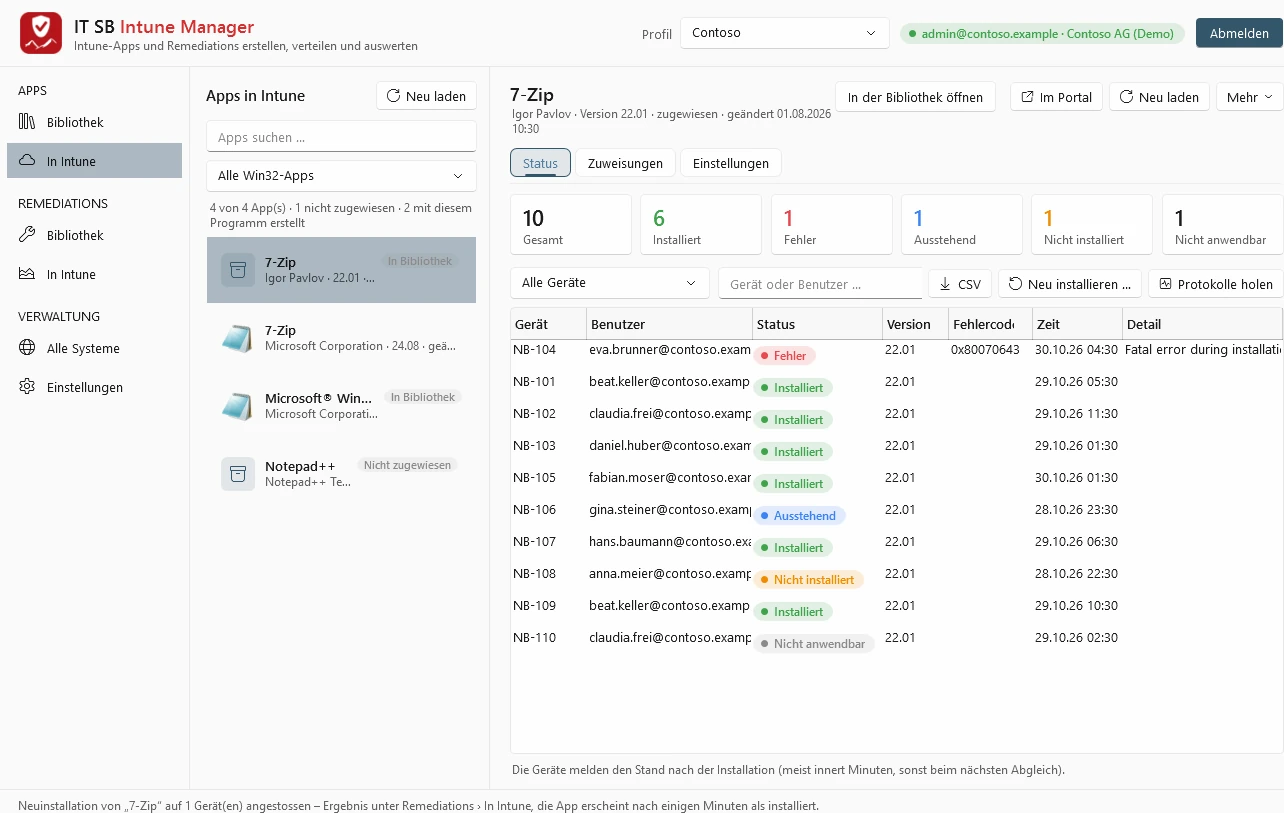
All Win32 apps of your tenant on one page – including those not created with Intune Manager. For each app you see on which devices it is installed, where it is stuck and why. You edit assignments, portal details, commands and rules directly; only the changed fields are saved.
- All Win32 apps, filterable: assigned, in the library, created with this program
- Status, assignments and settings of the app
- Summary: installed, failed, pending
- Reinstall on individual devices – without changing the assignment
- Fetch the logs of the devices
Understanding setups
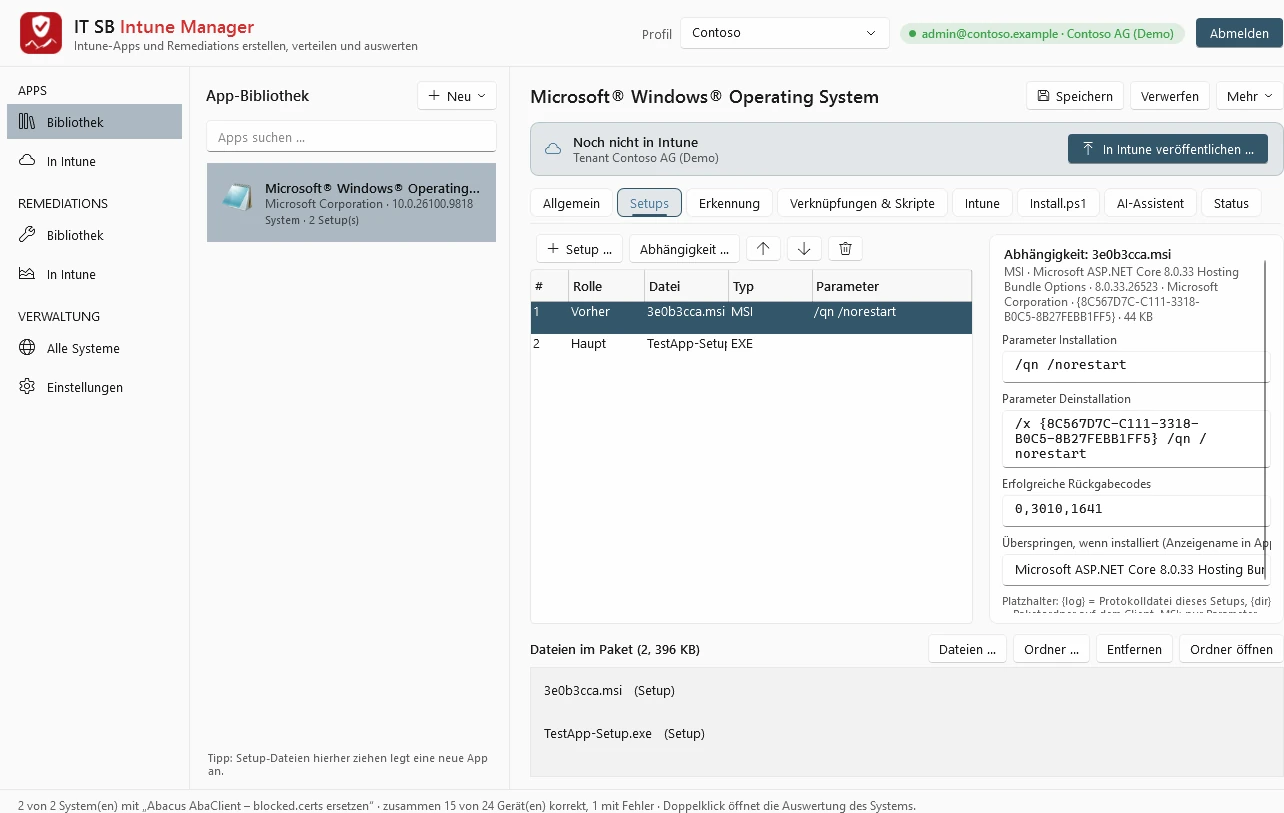
For MSI, Intune Manager reads the database directly: product code, version, properties. For EXE, it recognises common setup types and their switches. Several setups per app run in the desired order – for example a runtime before the program, skipped if it is already installed.
- Main setup and dependencies with role and order
- Parameters for installation and uninstallation, return codes – suggested, editable
- Skip a dependency if it is already installed
- Detection, shortcuts, custom scripts and the finished Install.ps1
Upload, update, replace
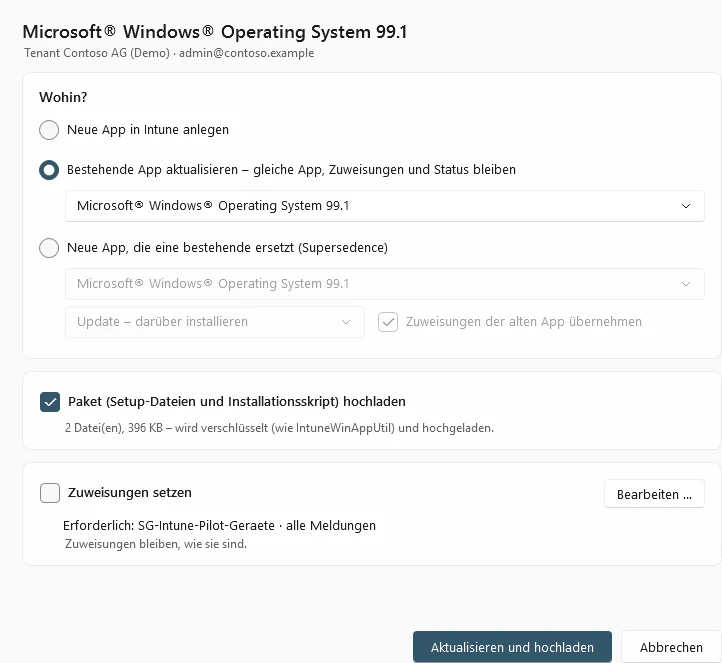
Intune Manager packages the app into the .intunewin format itself, encrypts it and uploads it – without IntuneWinAppUtil and without the portal. A new version replaces the old one in the same app, so assignments and status remain, or comes as a separate app with supersedence.
- Create a new app in Intune
- Update an existing app – assignments and status remain
- New app that replaces an existing one (supersedence), assignments taken over on request
- Upload the package encrypted
- Set the assignments at the same time
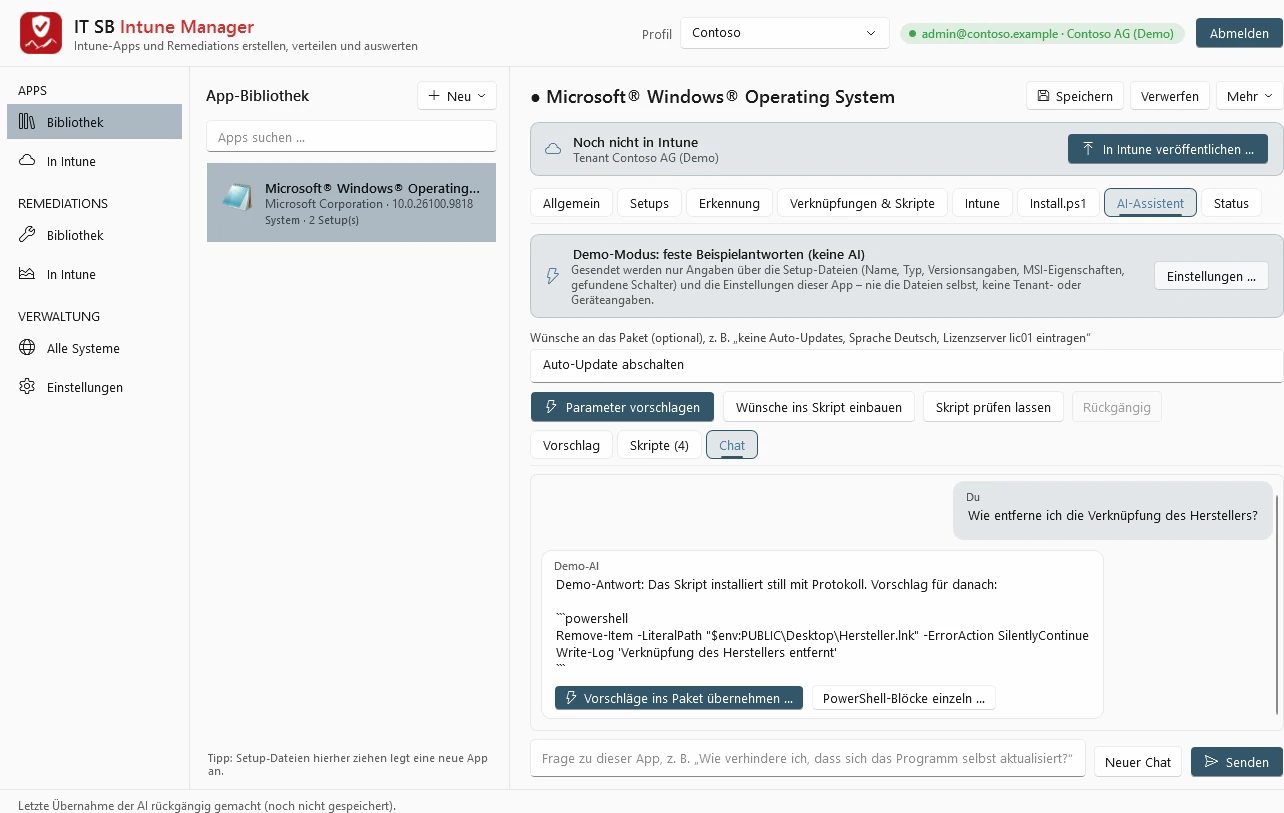
AI assistant
With your own key for Claude (Anthropic) or ChatGPT (OpenAI), the assistant suggests parameters, builds your requests into the installation script, reviews it, explains error codes and answers questions in the chat. You see every change beforehand and can undo it.
- Only information about the setups and the settings of the app is sent – never the files, no tenant, device or user names
- Build requests into the script, have the script reviewed
- Chat about this app
- Apply suggestions to the package with a preview
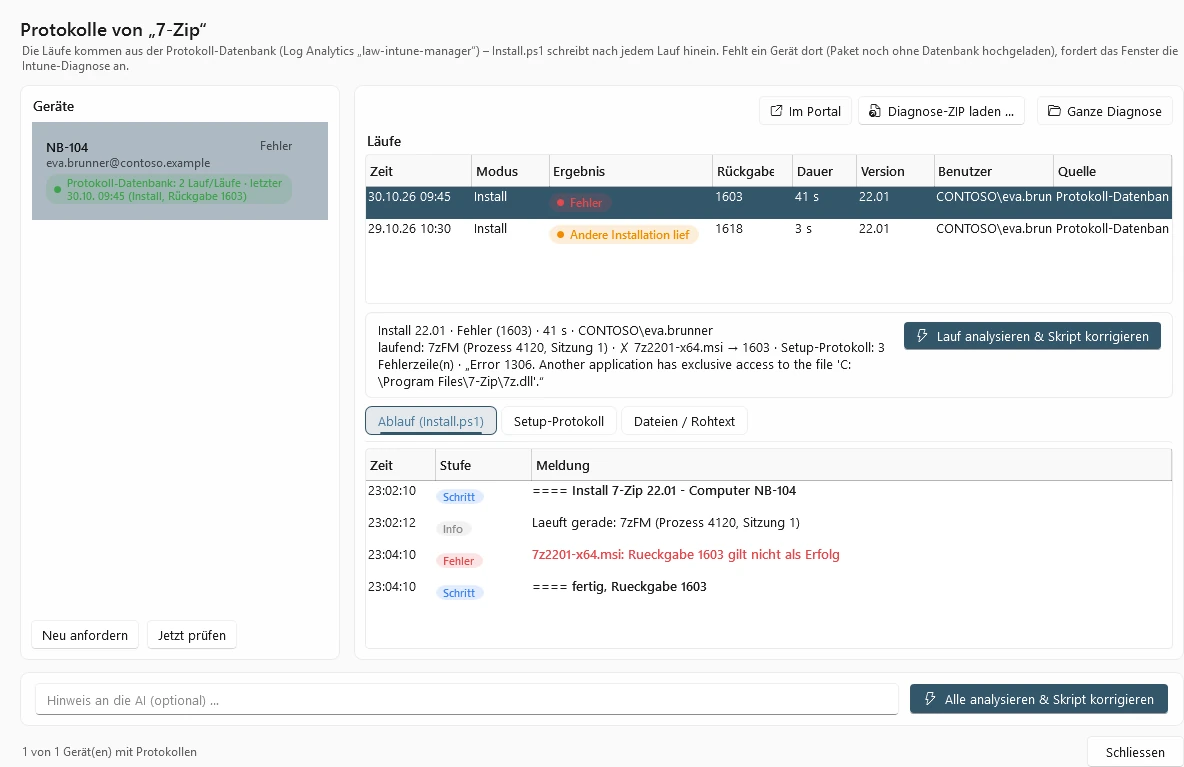
Logs and error analysis
Every installation writes its result including the log to a log database (Azure Log Analytics) in your own Azure – set up directly from Intune Manager. This way you see errors immediately, without accessing the device. The analysis names the cause and suggests a correction of the script.
- Every run with result, return code, duration and user
- Summary: which setup, which error line, which program was running
- Analyse a run and correct the script – with a preview
- The installation script's sequence step by step
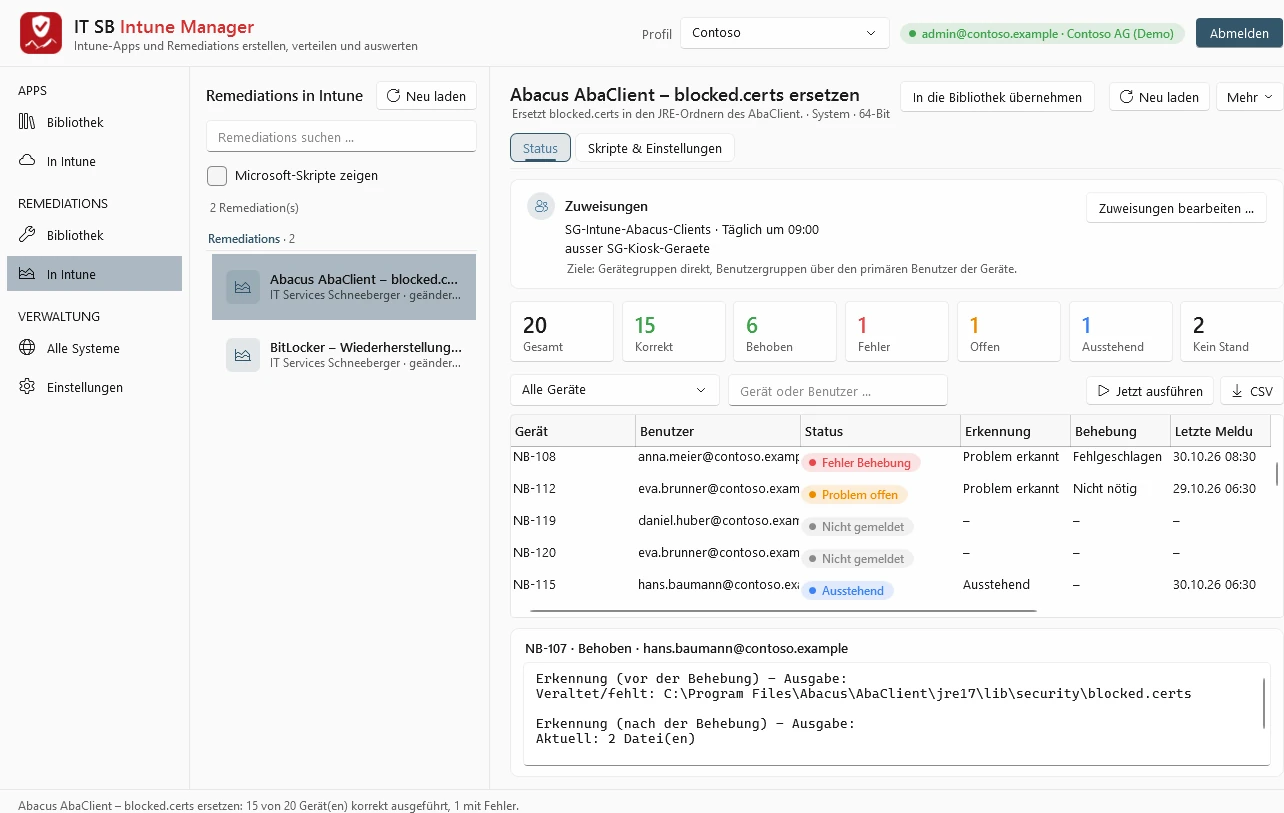
Remediations
Detection and remediation scripts as a library: from templates (e.g. distribute or replace a file), from script files, taken over from Intune or created by the AI assistant. Publish, assign, run on demand – and see per device what the scripts reported.
- Assignments with schedule and exclusions
- Summary: compliant, remediated, failed, pending
- Run now on selected devices
- Script output per device – before and after remediation
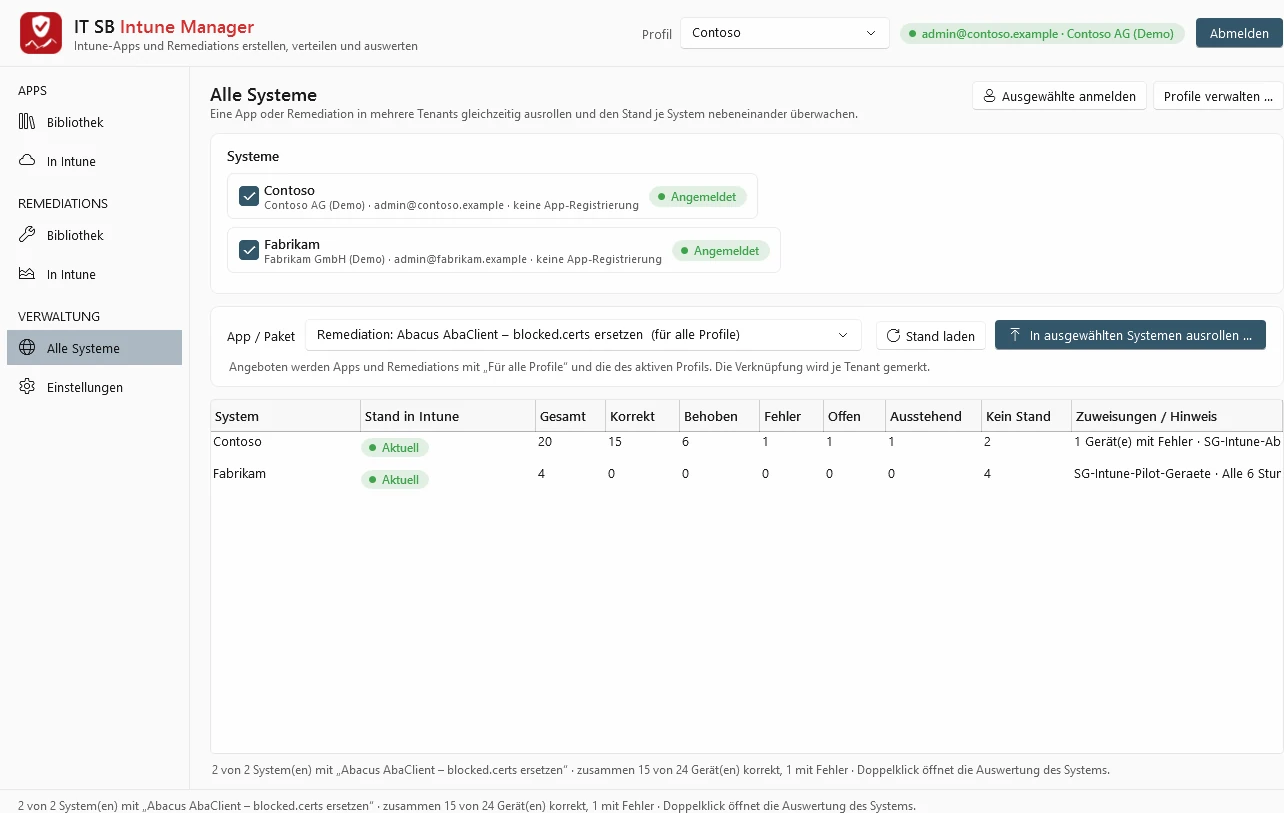
All tenants at once
Do you look after several companies? Each tenant is a profile with its own sign-in. You roll out apps and remediations to all selected tenants at the same time – existing ones are updated, new ones created – and then compare the status side by side.
- Select tenants and sign in together
- Choose an app or remediation
- Roll out to all selected systems
- Status per system side by side
An installation script that thinks ahead
Every app gets its own Install.ps1 – readable, without third-party modules, generated by Intune Manager and adapted on request.
- Notification window with the app's logo – if the program is currently running, a window asks users to save their work and closes it after a countdown. During installation it shows the progress step by step.
- Running programs detected – Intune Manager finds out by itself which processes belong to the app.
- Patient when Windows Installer is busy – the script waits for other installations and tries again on return code 1618.
- Diagnostics per run – pending restart, free disk space, events and whether the detection is correct afterwards.
- Reinstall per device – resets the status of the Intune Management Extension via an on-demand remediation, so that Intune installs the app again right away.
Your tenant, your sign-in, your data
A tool with write permissions in Intune must be particularly careful.
Your own app registration
You sign in with your admin account in the browser – with MFA and conditional access. A wizard creates the app registration in your own tenant, with delegated permissions only and without a secret.
Locked with Windows Hello
Saved sign-ins and AI keys are stored encrypted on your device; on request they are only released by Windows Hello – face, fingerprint or PIN.
Data stays with you
The library is on your device, the logs in your own Azure. No account with us, no cloud in between. For the licence, the program only transmits the key, an anonymous device ID and the ID and name of the licensed tenants.
Try it free for 30 days – with two tenants
Full functionality, once per device. After installation choose "Try free for 30 days" under Settings › Licence (Einstellungen › Lizenz › 30 Tage kostenlos testen) – this needs an internet connection once. Then enter the licence key; library and settings are kept.
Digitally signed by IT Services Schneeberger. Windows still shows a warning?
Licence per seat and tenant
Licensing is per seat – the device on which Intune Manager runs – and per tenant (Entra tenant) that you manage with it. As an annual or a perpetual licence, with seats and tenants added at any time. Buy online with PayPal or card – the key arrives by email immediately.
Licence per seat and tenant
As many seats and tenants as you need. You can add more at any time – without a new key, and for licences with a term pro rata until they expire.
With guidance
We set up Intune with you, package your programs and get remediations running – by IT SB.
Frequently asked questions
What does "per seat and tenant" mean?
A seat is a device on which Intune Manager is activated with this key. A tenant is an Entra tenant that you connect to in Intune Manager. Each tenant is permanently bound to the licence on first sign-in and cannot be swapped for another one afterwards – so the licence covers a fixed number of customers or companies. You release a seat yourself, for example when moving to a new PC ("Release device …", Gerät freigeben …).
Can I add seats or tenants later?
Yes. You extend your existing licence online with your licence key – there is no new key. With an annual licence, you only pay pro rata until it expires. In Intune Manager, Settings › Licence › "Check online" (Online prüfen) is then all it takes.
What happens when the annual licence expires?
The library is kept and can still be edited; signing in to Intune and publishing are blocked until you renew the licence. Apps and remediations published to Intune keep running independently of Intune Manager.
What do I need?
A Windows PC (Windows 10/11, 64-bit) and an Entra account with an Intune role, e.g. Intune Administrator. For the initial setup of the app registration, an administrator needs to consent once. Remediations require Windows Enterprise E3/E5, Education A3/A5 or Windows 365 in the tenant; Win32 apps work with any Intune licence.
Do I need the AI assistant?
No, everything works without it too. If you use it, you store your own API key from Anthropic (Claude) or OpenAI (ChatGPT); the requests go directly from your device to that provider, not via us. Only information about the setups and the settings of the app is sent – never the setup files themselves and no tenant, device or user names.
Where are the installation logs stored?
In a log database (Azure Log Analytics) in your own Azure subscription – a separate workspace for each customer. Intune Manager sets it up by itself on request; Microsoft bills the costs directly to you. Without a database, you download the device diagnostics from the Intune portal (ZIP) and Intune Manager evaluates them.
Do I have to keep maintaining apps created with Intune Manager with it?
No. They are normal Win32 apps in Intune with a readable PowerShell script; you can edit them in the Intune portal at any time. Conversely, Intune Manager also takes over apps and remediations that are already in Intune.
Is the setup signed – and why does Windows sometimes still show a warning?
Setup and program are digitally signed by IT Services Schneeberger via Microsoft Artifact Signing (identity verified by Microsoft). You can see the publisher by right-clicking the file → Properties → Digital Signatures. With a brand-new version, Windows SmartScreen may briefly still show "Windows protected your PC" until the version is sufficiently widespread – the publisher shown there is then IT Services Schneeberger. Click "More info" and then "Run anyway". The program only installs updates that are additionally signed with the IT SB key.